Sometimes I need diagrams in different languages for different purposes. E.g., for presentations on international conferences, I use english labels, while I need german labels for my thesis (which is written in German). I sometimes change my diagrams, I don't want to have two version of a diagram, one in english, another one in german. Because I always export my diagrams to PDF, I'm using two smart export scripts in conjunction with layers, used for internationalization (i18n).
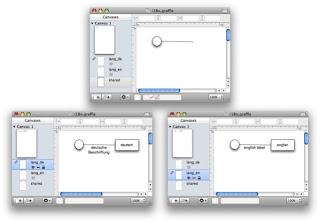
First of all, I add a layer for each language. In order to distinguish these internationalization layers from other layers, I use a prefix "lang_". All language specific labels and elements are added to that layer. Other things are placed on layers without my language prefix. Usually, I initially create the diagram in one language, and then move all language specific stuff to the language layer. I then copy all that language specific stuff and paste it onto another language layer (or, simply duplicate the layer), where it is translated. By changing the visibility of the language layers, I can change the language of the diagram. Since it is one diagram, changes on the shared layer are reflected in all language versions, language dependant things have to be adjusted (and translated) manually. The following screenshots show a sample diagram with three layers for shared, english and german elements.
In order to create language specific PDFs, I have modified a script I published
here some time ago. Here is the modified version:
-- converts selected OmniGraffle files to PDF with internationalization
-- based on Greg Titus's script found at
-- http://forums.omnigroup.com/showthread.php?t=106&highlight=export+applescript
--
-- by jevopi, 2010
global export_language, layer_prefix
set export_language to "de"
set layer_prefix to "lang_"


tell application "Finder"
 set these_items to the selection
end tell
repeat with i from 1 to the count of these_items
 set this_item to (item i of these_items) as alias
 set this_info to info for this_item
 -- insert actions here for: this_item

 set item_path to POSIX path of this_item
 set item_folder to (parent of (item i of these_items)) as string
 set item_name to name of (item i of these_items)
 set item_ext to name extension of (item i of these_items)

 set exp_name to my rename(item_name, item_ext, "pdf")
 set exp_path to item_folder & exp_name

 set msg to "Path: " & item_path & ", Exp: " & exp_path
 --display dialog msg buttons {"OK"} default button 1

 my omniConvert(this_item, item_path, exp_path)

end repeat


-- this sub-routine just comes up with the new name
on rename(item_name, item_ext, new_extension)
 tell application "Finder"
  if the item_ext is "" then
   set the trimmed_name to the file_name
  else
   set the trimmed_name to text 1 thru -((length of item_ext) + 2) of the item_name
  end if
  set target_name to (the trimmed_name & "_" & export_language & "." & new_extension) as string
 end tell
 return the target_name
end rename

-- this sub-routine does the export
on omniConvert(source_file, source_path, target_path)
 with timeout of 900 seconds
  tell application "OmniGraffle Professional 5"
   -- save the current export settings so we can replace them later
   set oldAreaType to area type of current export settings
   set oldBorder to include border of current export settings
   set oldBackground to draws background of current export settings

   -- here is where you set the export settings you want
   set area type of current export settings to all graphics
   set include border of current export settings to false
   set draws background of current export settings to false
   set export scale of current export settings to 1
   set border amount of current export settings to 0


   -- open the file if it isn't already open
   set needToOpen to (count (documents whose path is source_path)) is 0
   if needToOpen then
    open source_file
   end if

   -- do the export
   set docsWithPath to documents whose path is source_path
   set theDoc to first item of docsWithPath

   set allLayers to layers of first canvas of the theDoc

   repeat with i from 1 to the count of allLayers
    set theLayer to (item i of allLayers)

    --   repeat with theLayer in layers of first canvas of theDoc
    set theName to name of theLayer

    if (offset of layer_prefix in theName) > 0 then
     if theName = layer_prefix & export_language then
      set visible of theLayer to true
     else
      set visible of theLayer to false
     end if
    end if

   end repeat


   save theDoc in file target_path


   -- if the file wasn't already open, close it again
   if needToOpen then
    close theDoc saving no
   end if

   -- put the original export settings back
   set area type of current export settings to oldAreaType
   set include border of current export settings to oldBorder
   set draws background of current export settings to oldBackground
  end tell
 end timeout
end omniConvert
This script exports an OmniGraffle diagram to PDF. Besides, only one language specific layer is made visible and the langauge id is added to the filename. The language is defined in line
set export_language to "de"
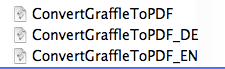
That is, this script automatically creates a german version of the diagram. I have a script for each language (and one w/o i18n) in my script folder, e.g.
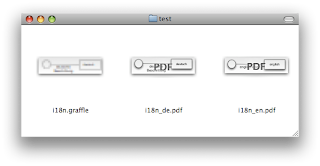
After applying the both i18n-scripts to the diagram, two PDFs are created from my diagram:
This technique works pretty well with text and connection labels. Unfortunately labels placed on shapes cannot be moved on a layer different from the shape. So, in these cases you have to move the whole shape to the language layer. If you translate a diagram after you have created it, this works pretty well. It may become a little bit annoying if you have to change the diagram, but at least you are aware of the changes and don't have to work with two separate files.
Sometimes I need diagrams in different languages for different purposes. E.g., for presentations on international conferences, I use english labels, while I need german labels for my thesis (which is written in German). I sometimes change my diagrams, I don't want to have two version of a diagram, one in english, another one in german. Because I always export my diagrams to PDF, I'm using two smart export scripts in conjunction with layers, used for internationalization (i18n).
First of all, I add a layer for each language. In order to distinguish these internationalization layers from other layers, I use a prefix "lang_". All language specific labels and elements are added to that layer. Other things are placed on layers without my language prefix. Usually, I initially create the diagram in one language, and then move all language specific stuff to the language layer. I then copy all that language specific stuff and paste it onto another language layer (or, simply duplicate the layer), where it is translated. By changing the visibility of the language layers, I can change the language of the diagram. Since it is one diagram, changes on the shared layer are reflected in all language versions, language dependant things have to be adjusted (and translated) manually. The following screenshots show a sample diagram with three layers for shared, english and german elements.
In order to create language specific PDFs, I have modified a script I published
here some time ago. Here is the modified version:
-- converts selected OmniGraffle files to PDF with internationalization
-- based on Greg Titus's script found at
-- http://forums.omnigroup.com/showthread.php?t=106&highlight=export+applescript
--
-- by jevopi, 2010
global export_language, layer_prefix
set export_language to "de"
set layer_prefix to "lang_"


tell application "Finder"
 set these_items to the selection
end tell
repeat with i from 1 to the count of these_items
 set this_item to (item i of these_items) as alias
 set this_info to info for this_item
 -- insert actions here for: this_item

 set item_path to POSIX path of this_item
 set item_folder to (parent of (item i of these_items)) as string
 set item_name to name of (item i of these_items)
 set item_ext to name extension of (item i of these_items)

 set exp_name to my rename(item_name, item_ext, "pdf")
 set exp_path to item_folder & exp_name

 set msg to "Path: " & item_path & ", Exp: " & exp_path
 --display dialog msg buttons {"OK"} default button 1

 my omniConvert(this_item, item_path, exp_path)

end repeat


-- this sub-routine just comes up with the new name
on rename(item_name, item_ext, new_extension)
 tell application "Finder"
  if the item_ext is "" then
   set the trimmed_name to the file_name
  else
   set the trimmed_name to text 1 thru -((length of item_ext) + 2) of the item_name
  end if
  set target_name to (the trimmed_name & "_" & export_language & "." & new_extension) as string
 end tell
 return the target_name
end rename

-- this sub-routine does the export
on omniConvert(source_file, source_path, target_path)
 with timeout of 900 seconds
  tell application "OmniGraffle Professional 5"
   -- save the current export settings so we can replace them later
   set oldAreaType to area type of current export settings
   set oldBorder to include border of current export settings
   set oldBackground to draws background of current export settings

   -- here is where you set the export settings you want
   set area type of current export settings to all graphics
   set include border of current export settings to false
   set draws background of current export settings to false
   set export scale of current export settings to 1
   set border amount of current export settings to 0


   -- open the file if it isn't already open
   set needToOpen to (count (documents whose path is source_path)) is 0
   if needToOpen then
    open source_file
   end if

   -- do the export
   set docsWithPath to documents whose path is source_path
   set theDoc to first item of docsWithPath

   set allLayers to layers of first canvas of the theDoc

   repeat with i from 1 to the count of allLayers
    set theLayer to (item i of allLayers)

    --   repeat with theLayer in layers of first canvas of theDoc
    set theName to name of theLayer

    if (offset of layer_prefix in theName) > 0 then
     if theName = layer_prefix & export_language then
      set visible of theLayer to true
     else
      set visible of theLayer to false
     end if
    end if

   end repeat


   save theDoc in file target_path


   -- if the file wasn't already open, close it again
   if needToOpen then
    close theDoc saving no
   end if

   -- put the original export settings back
   set area type of current export settings to oldAreaType
   set include border of current export settings to oldBorder
   set draws background of current export settings to oldBackground
  end tell
 end timeout
end omniConvert
This script exports an OmniGraffle diagram to PDF. Besides, only one language specific layer is made visible and the langauge id is added to the filename. The language is defined in line
set export_language to "de"
That is, this script automatically creates a german version of the diagram. I have a script for each language (and one w/o i18n) in my script folder, e.g.
After applying the both i18n-scripts to the diagram, two PDFs are created from my diagram:
This technique works pretty well with text and connection labels. Unfortunately labels placed on shapes cannot be moved on a layer different from the shape. So, in these cases you have to move the whole shape to the language layer. If you translate a diagram after you have created it, this works pretty well. It may become a little bit annoying if you have to change the diagram, but at least you are aware of the changes and don't have to work with two separate files.
OmniGraffle and multi-language diagrams
 In order to create language specific PDFs, I have modified a script I published here some time ago. Here is the modified version:
 After applying the both i18n-scripts to the diagram, two PDFs are created from my diagram:
 This technique works pretty well with text and connection labels. Unfortunately labels placed on shapes cannot be moved on a layer different from the shape. So, in these cases you have to move the whole shape to the language layer. If you translate a diagram after you have created it, this works pretty well. It may become a little bit annoying if you have to change the diagram, but at least you are aware of the changes and don't have to work with two separate files.
